How to Migrate from Office 365 to Google Workspace (G Suite)?


-
Written By
Andrew Tie -
Approved By
Shivam Rathore -
Updated on
December 10th, 2024 - Read Time
6 minutes
User Query: Typically, users migrate from Google Workspace to Office 365 for better and enhanced functionality. But I am searching for the opposite. Yes, you got it right! till now, we were using Office 365 for official communication and collaboration. But, recently our company has decided to move from Office 365 to Google Workspace. While it’s not possible to revert, I would like to know what are the advantages of migrate from Office 365 to Google Workspace. Also, please suggest an easy, quick, and safe method for this migration.
This blog is completely based on the above query. highlighting the benefits of Google Workspace that prompt users to switch from Office 365. Additionally, we’ll cover safe and reliable ways to migrate from Office 365 to Google Workspace, including a professional Office 365 Email Backup Tool for a seamless process.
Why Do Users Migrate Microsoft 365 to Google Workspace?
When you think of an excellent cloud-based platform, Google Workspace (formerly G Suite) and Microsoft 365 come to mind. While both platforms offer robust features, Google Workspace has several benefits that motivate businesses to make the switch:
- We have been using Gmail and other Google applications like Drive, Docs, Calendar, etc. for personal use for years. Therefore, the main reason to switch from Office 365 to G Suite is its familiar interface.
- G Suite offers very simple and minimal subscription plans: Basic, Business, and Enterprise. This helps businesses and organizations choose as per their requirement without confusion.
- Furthermore, Google Workspaces offers superior functionality such as speed and versatility, resulting in increased productivity.
- For businesses and organizations, unlimited cloud storage is essential. But if the platform keeps charging for additional storage space, it’s not cost-efficient. Therefore, G Suite offers unlimited storage space for its Business and Enterprise subscription plans.
Now, knowing the benefits we can move on to know the correct process to migrate emails from Office 365 to Google Workspace.
Manual Method to Migrate from Office 365 to Google Workspace
The manual process of Office 365 to G Suite migration is a bit long, complicated, and hectic. But, we will try to make it simple for you. This procedure involves DMS (Document Management System) to migrate email, contacts, and calendars.
But, before you begin migration, you need to follow some pre-requisites. They are:
- Create and set up a new G Suite account
- Assign Roles in Office 365 Account
To migrate from Microsoft 365 to G Suite, you need an existing G Suite account. Therefore, let us assume you have already created and set up a New G Suite User and Admin Account. All the steps mentioned are explained in detail further.
Assign Roles in Office 365 Account
Follow the steps below:
- Sign In to the Microsoft 365 (Office 365) Admin account.
- Click on Show All and scroll to the Office 365 admin panel.
- Under the Admin Centre Section, click on Exchange.
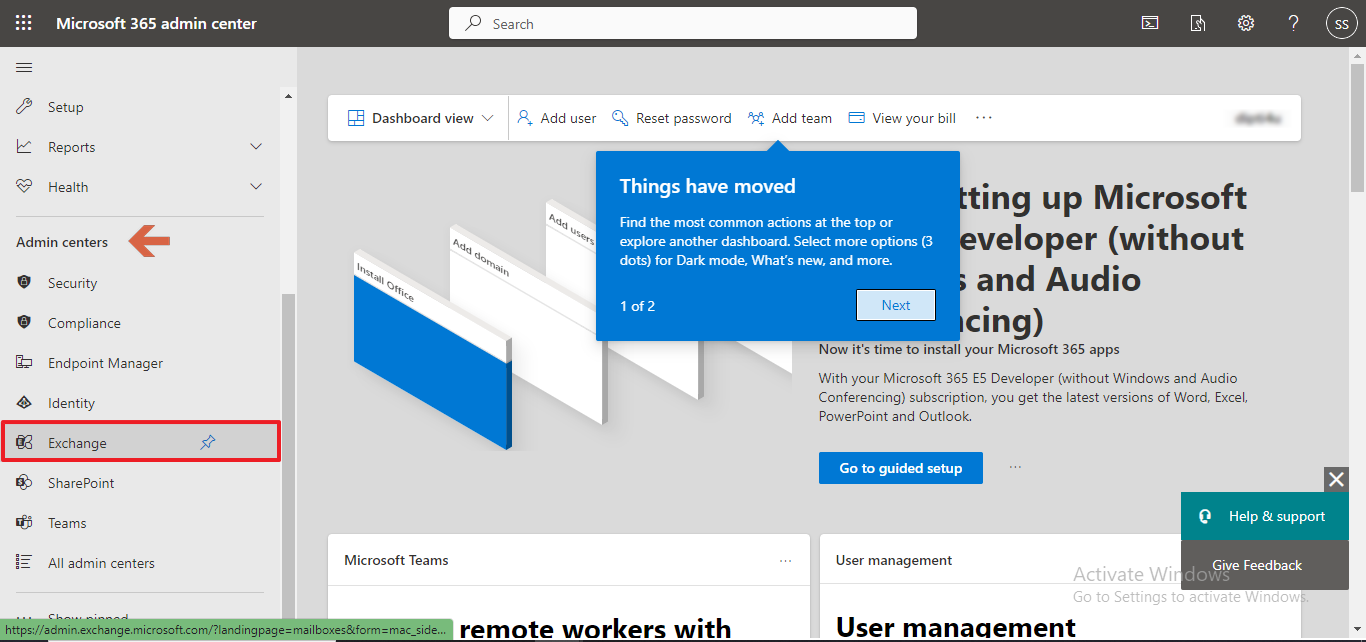
- Under Exchange Admin Center (EAC), click on Roles and choose Admin Roles.
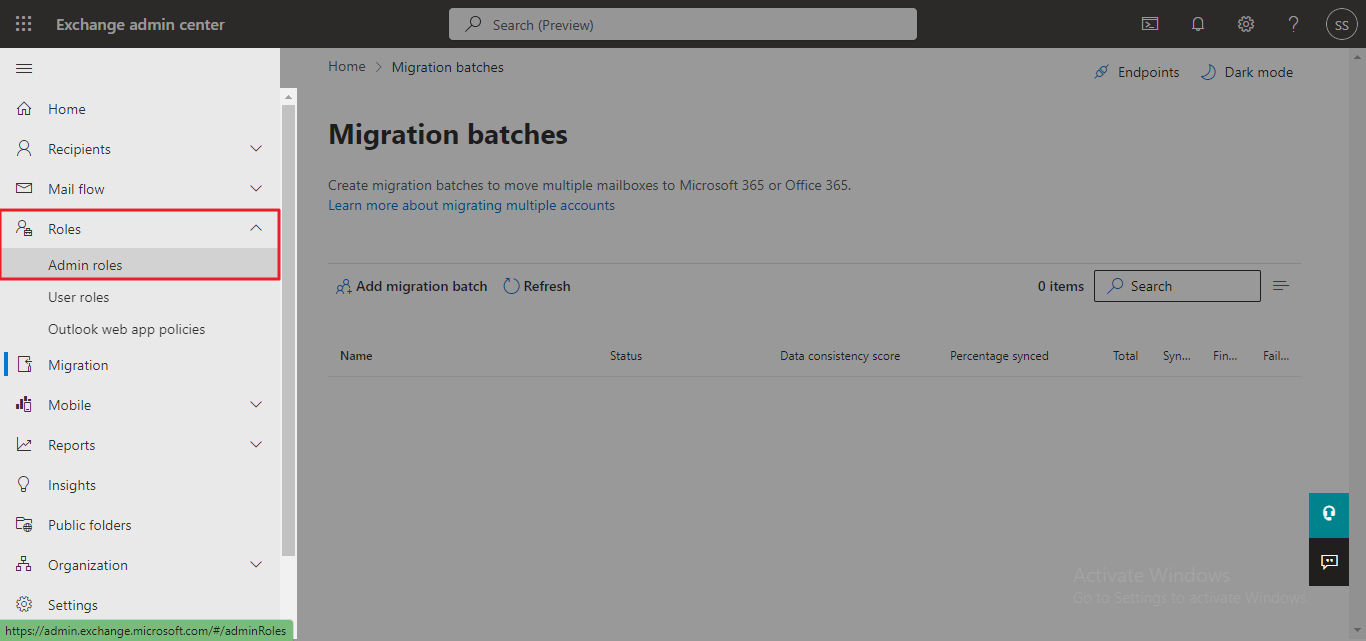
- Click on ‘Add Role Group’.

- Set the Basics of Role Group. Provide a name and description. Click on Next to go to the Permission tab.

- In Permission, search and select to assign two roles for specific accounts i.e., ApplicationImpersonation and View-Only Configuration. Again, tap Next.

- In the Admins section, provide an admin name by name or email address. Click on Next.

- In the Review and Finish section, click on Add Role Group. Then, hit Done.

Now, moving on to the next step which is a migrating email from O365 to Google Workspace.
Migrate Emails from Office 365 to Google Workspace
- Sign In to your G Suite Admin account and go to the Workspace admin console.
- Select Data Migration.
- Choose Email and enter Microsoft Office 365 as Migration Source, choose Exchange Web Services for Connection Protocol, and enter the O365 account’s web address in the URL field.
- Further. in the Role Account field enter your User’s Email Address and Password in Role.
- Then, click on Connect.
- Select the Migration start date and other Migration options. Click on Select Users to proceed.
- Next, choose the source user account and the destination user account, to transfer Office 365 emails to Google Workspace. You can select single or multiple users for the source account.
- Click on Start to begin migration.
Similarly, you can transfer contact and calendar information from Office 365 to Google Workspace. Still, performing the manual process is very tricky and complicated. Also, you need to have proper knowledge of both platforms to execute this method correctly. Therefore, if you are new to any of the two, you may face problems during this process and even your data may be at risk.
Now, you might be wondering how to move my Office 365 email to Google Workspace, if not manually. We have a quicker and more secure way for you. The Office 365 email backup tool is a master solution for migrating Office 365 to G Suite.
Expert Solutions to Migrate from Office 365 to Google Workspace
DRS Office 365 Backup Tool can be your big yes for transferring entire mailbox data from Office 365 to G Suite. That too, without any risk of data loss and additional time consumption. This tool is a comprehensive utility that backs up and restores Office 365 data within 20-25 minutes. You can back up your Office 365 data in different file formats or transfer it to other email clients. Moreover, you get various migration options to migrate emails from Office 365 to Google Workspace and get precise and accurate results. Other features of the tool are:
- Backup entire mailbox data like contacts, calendars, notes, etc.
- Offers to eliminate duplicate data during migration.
- Date Range Mail filter to back up only specific data.
- Runs smoothly on all versions of Windows OS.
Steps to Migrate Office 365 Mails to Google Workspace
- Download and open the DRS Office 365 Backup Tool on your system.
- Enter your Office 365 admin credentials to connect your account.
- Choose the data type (emails, contacts, calendars, etc.) to backup or migrate.
- Use filters like Date Range or Exclude Duplicate Emails as needed.
- Select the desired target email client (e.g., Google Workspace).
- Click on the Start button to begin the backup or migration process.
Wrapping Up
So, now you know why users are switching from O365 to G Suite. Additionally, you know how to migrate from Office 365 to Google Workspace. Well, we do not recommend using the manual process to migrate Microsoft Office 365 data. One mistake of yours can cause you to lose important data. Therefore, the expert suggested that Office 365 email backup tools are always a better option.
About The Author:
Andrew Tie is a vastly experienced tech journalist who enjoys taking apart complex technology for a broad audience. Over more than a decade in the technology sector, Tie is good at making complicated technical concepts lucidly clear; enabling readers through engaging content. During his writing career so far, Andrew has written for several tech publications, right from industry-leading journals to popular tech blogs. Clarity, precision, and the ability to bridge technical vocabularies with everyday understanding mark his work.


