
How to Change from POP3 to IMAP Account in Outlook
Summary: Many users seek the easiest way to convert POP3 to IMAP. So, here are detailed step-by-step processes you need to follow. Along with the right technique, the blog will suggest you a professional tool to make your mailbox more secure and easily accessible for you. Also, for your better understanding, this blog will answer why to switch POP3 to IMAP and which is a better option.
Overview
IMAP (Internet Message Access Protocol) and POP (Post Office Protocol) are widely used email access methods. Among the two, POP is the older method and simpler one, whereas IMAP is the latest and most preferred one. POP3 is the 3rd revision of POP.
Both IMAP and POP can be used to access and retrieve email data from a mail server. But, compared to POP3, IMAP is more flexible to use. Moreover, it has many other advantages. Let's learn some key differences between IMAP and POP and why one should change from POP3 to IMAP.
POP vs IMAP
You would be thinking about the reason to convert POP3 to IMAP in Outlook 2019. The reason being IMAP is more flexible to use and provides many other features that POP3 lacks. Using IMAP, users can access email wherever they are, from any device because while reading email using IMAP, we read it from the email service and do not download it to systems, unlike POP. Thus, IMAP enables the user to check email from anywhere in the world, using any device.
Here are some key differences between POP and IMAP.- POP3 is a significantly simplified protocol whereas IMAP is complex. That is, POP3 can only download or retrieve email from inbox to the local system but IMAP allows users to view and read email through any device on the mail server itself.
- POP3 does not allow users to organize emails on the server, whereas IMAP users can organize their available emails on the server.
- IMAP provides multiple device access at a time to read mail but POP3 allows only one device at a time.
- In IMAP, users can use email software or a web interface to change or delete the available emails but POP3 doesn't allow users to alter or delete available mail on the server.
- IMAP always saves mail on the mail server. But POP doesn't unless the user selects “Keep a copy on the server” via settings.
Steps to Convert POP3 to IMAP in Outlook 2019
To move emails from POP3 to IMAP, let us know the manual process to change POP3 to IMAP.
Note: Before you change from POP3 to IMAP, it is suggested to create a backup of your mailboxes, to avoid losing or deleting anything important.
To manually switch POP3 to IMAP, you are required to follow the steps mentioned below-#1. Remove Existing POP Account
- Run MS Outlook 2019 application in your system.
- Go to Files > Select Info
- Click on Account Settings > Account Settings option

- The Account Settings window opens. Click on your Email account (POP3) and then Click Remove.

- After you receive a warning message, Click Yes to remove the account.

- Go to Files > Select Info
- Click on +Add Accounts.

- On the Add Accounts page, select Manual setup or additional server types, and click on Next to proceed.

- Under Choose your Account type page Select POP or IMAP as account types and click Next.

- Add the asked User, Server, and Login information, like name, email, Account Type as IMAP, Incoming and Outgoing mail server, User Name, and Password, and then click on the More Settings options.

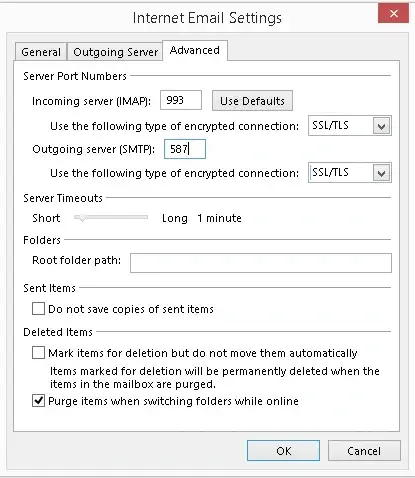
- Another Window Internet Email Settings will open. Click Advanced Tab.
- Enter the Incoming server(IMAP) value as 993 and the Outgoing server(STMP) value as 465. Also, using the dropdown menu choose encrypted connection as SSL.
- Now switch to the Outgoing Server tab.
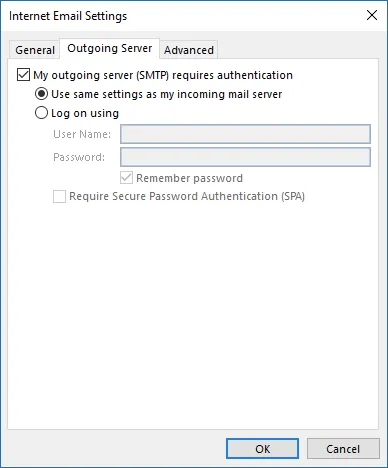
- Check the box next to My outgoing server (SMTP) requires authentication, and then select the radio button next to Use same settings as my incoming mail server.
- Click Ok > Next. Account testing by Outlook will be progressed.

- After the test is successful click Close and then Finish.
By performing the above procedure, you can easily convert POP3 to IMAP in Outlook 2019. After you finish adding a new IMAP account, export and restore your mailboxes.
Suggestive Method
Migrating your POP3 emails to IMAP email accounts is an appropriate solution for better email services. However, considering the present situation and the need for cloud storage and online applications, we recommend you switch from the IMAP mailbox to the cloud. It enables you to be more productive and allows easy access and sharing of data. The most remarkable cloud service is Office 365. Hence, using IMAP to Office 365 Migration tool, you can easily do the job.
The software enables you to migrate emails easily and effectively, with its latest features and innovations. It provides some additional features such as downloading emails without attachments or migrating emails of a specific date range. Above all, the tool is user-friendly, such that users can operate on their own.
Conclusion
To convert POP3 to IMAP in Outlook 2019, you can go with the manual method mentioned above. Moreover, the more optimal approach is to migrate emails from IMAP to Office 365 for more secure and integrated data. The IMAP Migration tool assists you in migrating IMAP emails to Office 365 easily.


